
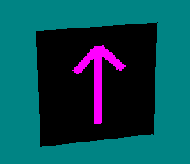
Our example model is pretty bland, so let's see if we can't transform it into something more interesting. So far, we just have a flat model with an arrow pointing upward.
 |
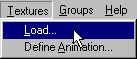
The first thing we need to do is load up another, more interesting texture. Click Textures>Load.
 |
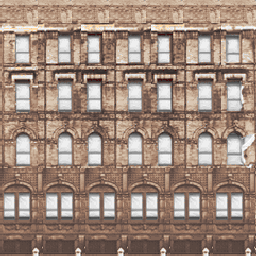
Browse to the texture you want to use. For our example, I will continue with the zep house. I will select ZEPBILD2.RAW.
 |
Click open. You are ready to go.
Press the space bar until the face you want is a purple color. That shouldn't be hard to figure out here since we only have one face.
 |
Next, press SHIFT + T. The following box will come up.
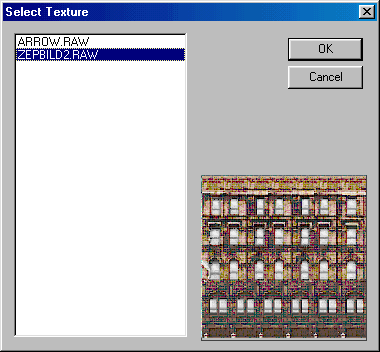 |
Highlight the texture you want (it will be displayed in the preview window) and click OK. Your model will have the new texture.
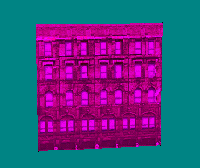 |
Save your work.
| Note: you will not be able to "turn off" the purple color on this model at this point - since it has only one face. |
This model is now ready for use in your track. Of course, a one-sided building is nothing specactuar but you should get the idea. This could be a sign, a tree, or anything else you might want to build. Furthermore, it is the starting point for much more complex models.
