VectorSlope
The Window
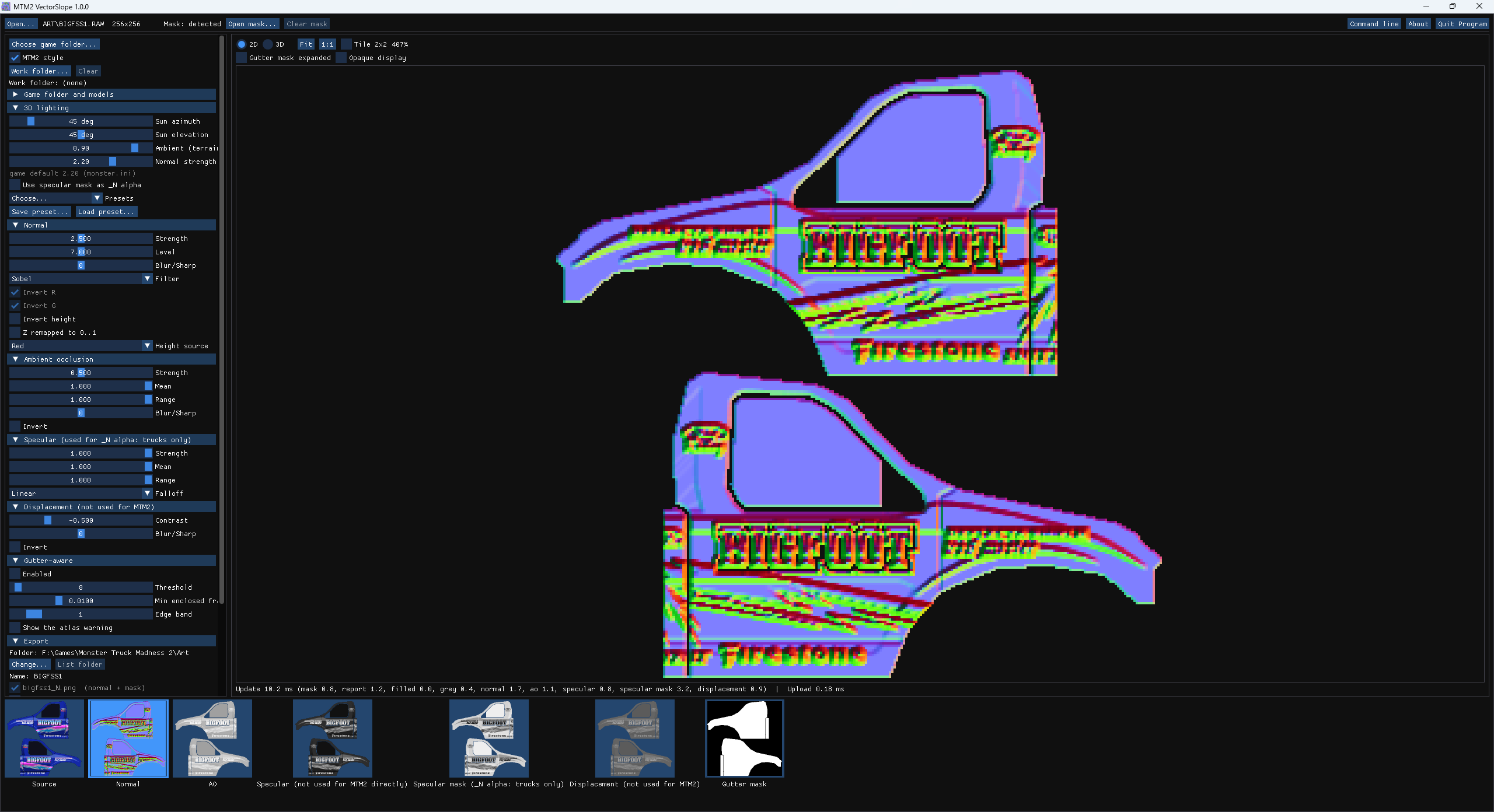
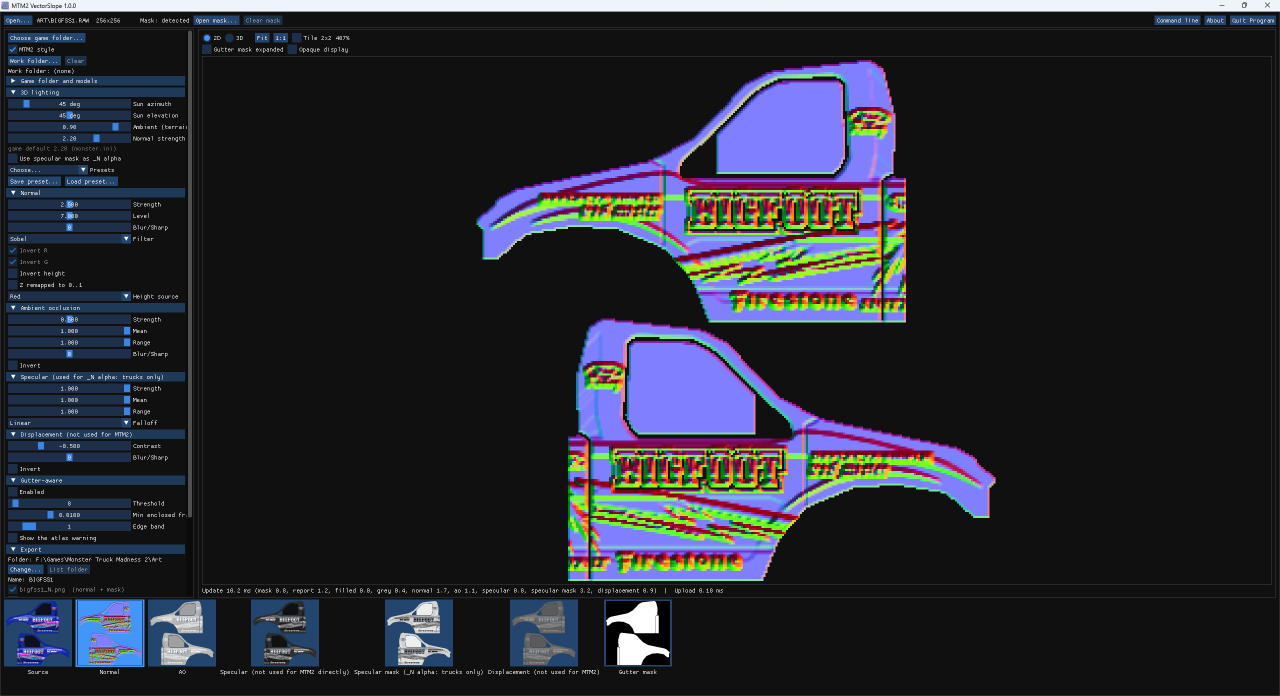
VectorSlope is one window. The controls run down the left side; the large view and
the map thumbnails fill the right.
The controls
From top to bottom:
- Choose game folder..., the Work folder row, and the MTM2 style
checkbox.
- Game folder and models — the Textures, Models and Trucks lists.
- 3D lighting — the sun, the ambient level and the in-game normal
strength.
- Presets — load or save every generator setting at once.
- Normal, Ambient occlusion, Specular, Displacement
— one section per map.
- Gutter-aware — the UV atlas settings.
- Export — where and what to save.
At the very top, About shows the version and the credits, and Command
line shows every option of the command-line tool with a Copy button.
The thumbnails
They show each map as it is now. Hover one to see what it is for; the labels also say
which maps MTM2 does not use.
The large view
It has two modes:
- 2D — the map you clicked, with Fit, 1:1 and a zoom
readout. Tile 2x2 repeats the texture so you can check that it tiles without a
seam. Opaque display ignores each map's alpha on screen (the files are not
changed), and Gutter mask expanded shows the gutter mask the way the fill uses
it.
- 3D — the texture on a model, the terrain or a truck. See
The 3D preview.
Nothing is written until you press Save. Moving sliders, opening files and
switching previews never touch your folders.